Zoom-Ready Product Images: A Practical Checklist for Shopify Stores (Plus How to Set Up ZoomMaster)

Demo product shown for illustration.
Install ZoomMaster App Now
A Zoom App Can Only Show What Your Photos Contain
Merchants often add an image zoom app expecting it to fix a product page that isn't converting, then feel let down when the zoomed view looks soft.
The reason is simple: a magnifier doesn't invent detail. It reveals the detail that is already in your image file. Great zoom is a partnership between good photography and a good magnifier.
This guide gives you a practical checklist for both halves: how to prepare images that hold up under zoom, and how to set up ZoomMaster so shoppers can inspect every stitch, grain and finish without leaving the page. (If you use a Horizon-family theme and want to know how a hover magnifier fits alongside its built-in tap-to-zoom, we covered that in ZoomMaster vs. Horizon's Tap-to-Zoom.)
Why Zoom Matters on Product Pages
Online shoppers can't pick a product up. Close inspection is the closest substitute and a shopper who can't see texture, material or finish is a shopper with unanswered questions.
Zoom helps most when the buying decision depends on detail:
- Fashion and accessories: stitching, fabric weave, hardware
- Jewellery and watches: engraving, finish, small components
- Beauty and home goods: texture, pattern, material quality
- Electronics: ports, buttons, build quality
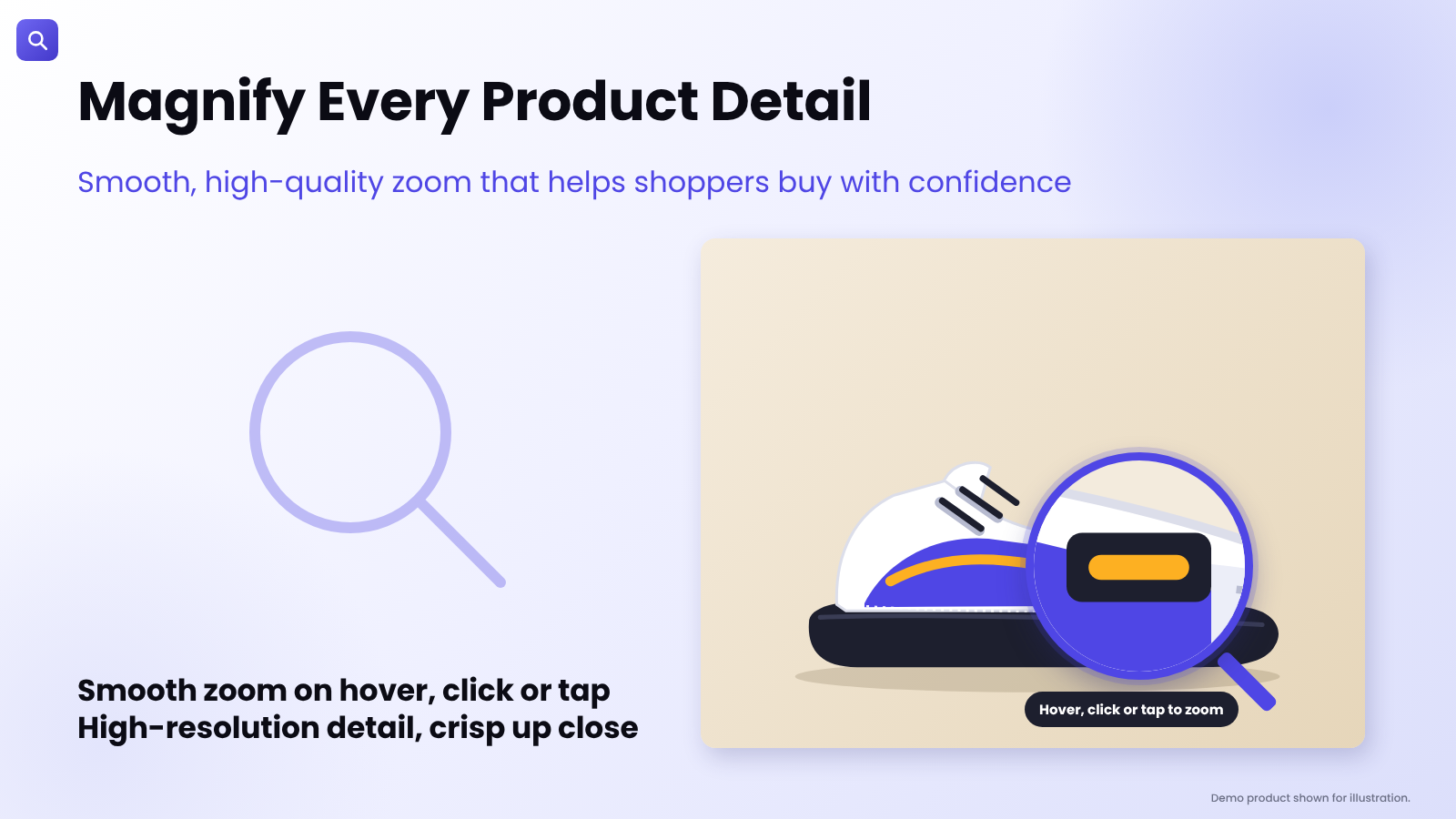
For these categories, letting shoppers see more is a straightforward way to reduce uncertainty. ZoomMaster is built for exactly that, with smooth zoom on hover, click or tap.
Demo store and product shown for illustration.
The Zoom-Ready Image Checklist
Run through this list for your top-selling products first. These are practical guidelines rather than hard rules, so adjust them to your catalogue.
1. Upload the sharpest original you have. Don't upload a small, heavily compressed version "to keep the page fast." Zoom needs source pixels to magnify. As a rule of thumb, aim for roughly 2,000 pixels or more on the long side for products where detail matters. ZoomMaster supports high-resolution zoom up to full image quality, so a better source image directly means a crisper zoomed view.
2. Include at least one close-up. Add a detail shot of the feature you want shoppers to inspect: the clasp, the label, the grain. Zoom works best when the first image is sharp and later images show details from different angles.
3. Keep framing consistent. Use the same aspect ratio, background and product placement across a product's images and across a collection. It makes the page feel professional and keeps the magnifier behaving predictably.
4. Light for texture, not just for brightness. Soft, directional light shows surface texture. Flat, over-exposed photos have nothing to reveal when zoomed.
5. Check every variant. If a product has colour or style variants, make sure each variant has its own sharp image. Then test that zoom still works after switching variants.
6. Compress sensibly. Reduce file size only as far as the image still looks clean when magnified. If the zoomed view shows blocky artefacts, the compression is too aggressive.
Choose a Magnifier Style That Fits Your Brand
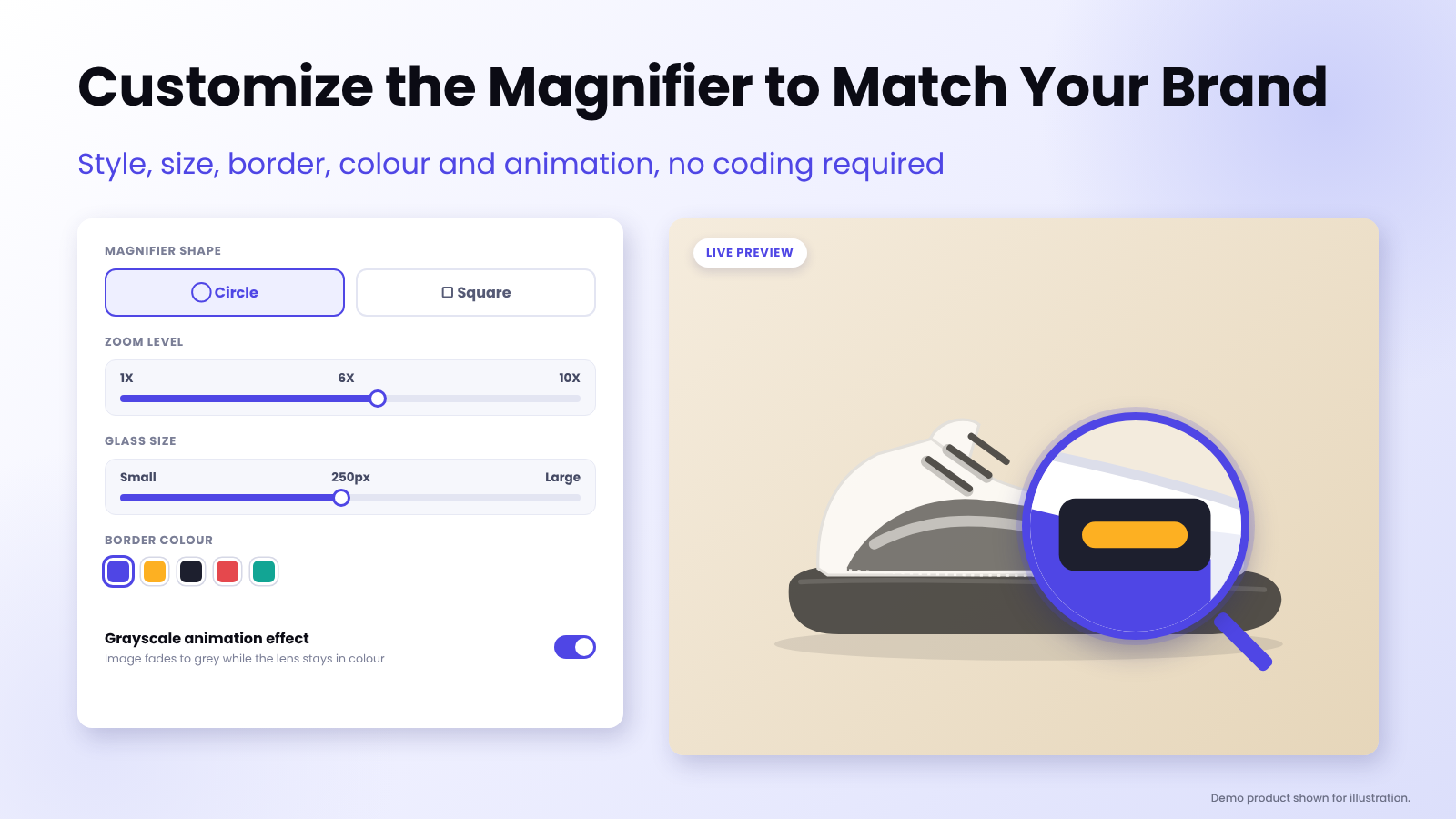
ZoomMaster lets you customize the magnifier so it looks like part of your store rather than a bolt-on. You can adjust the style, size, border and colour, as well as the zoom level and animation.
Demo product shown for illustration. Settings layout is illustrative.
A few practical suggestions:
- Circle or square: A circular glass feels like a classic magnifying lens. A square one can suit minimal, editorial or grid-based stores.
- Zoom level: Listing details say ZoomMaster supports zoom up to 10x. More is not always better. Choose a level that reveals detail without turning the image into an unreadable blur at your image resolution.
- Glass size: Make it large enough to see context, small enough not to hide the whole product.
- Border colour: Match your brand colour or keep it neutral so it doesn't compete with the product.
- Grayscale animation effect: The listing includes grayscale animation effects, which can help the magnified area stand out. Try it, then keep it only if it suits your brand.
Don't Forget Mobile
More than a hover effect, zoom has to work on phones, where there is no cursor. ZoomMaster includes tap-to-zoom and touch support, so mobile shoppers can inspect details too.
Before you call setup finished:
- Open your product page on a real phone, not only a desktop browser's mobile preview.
- Tap the main image and check the zoom opens smoothly.
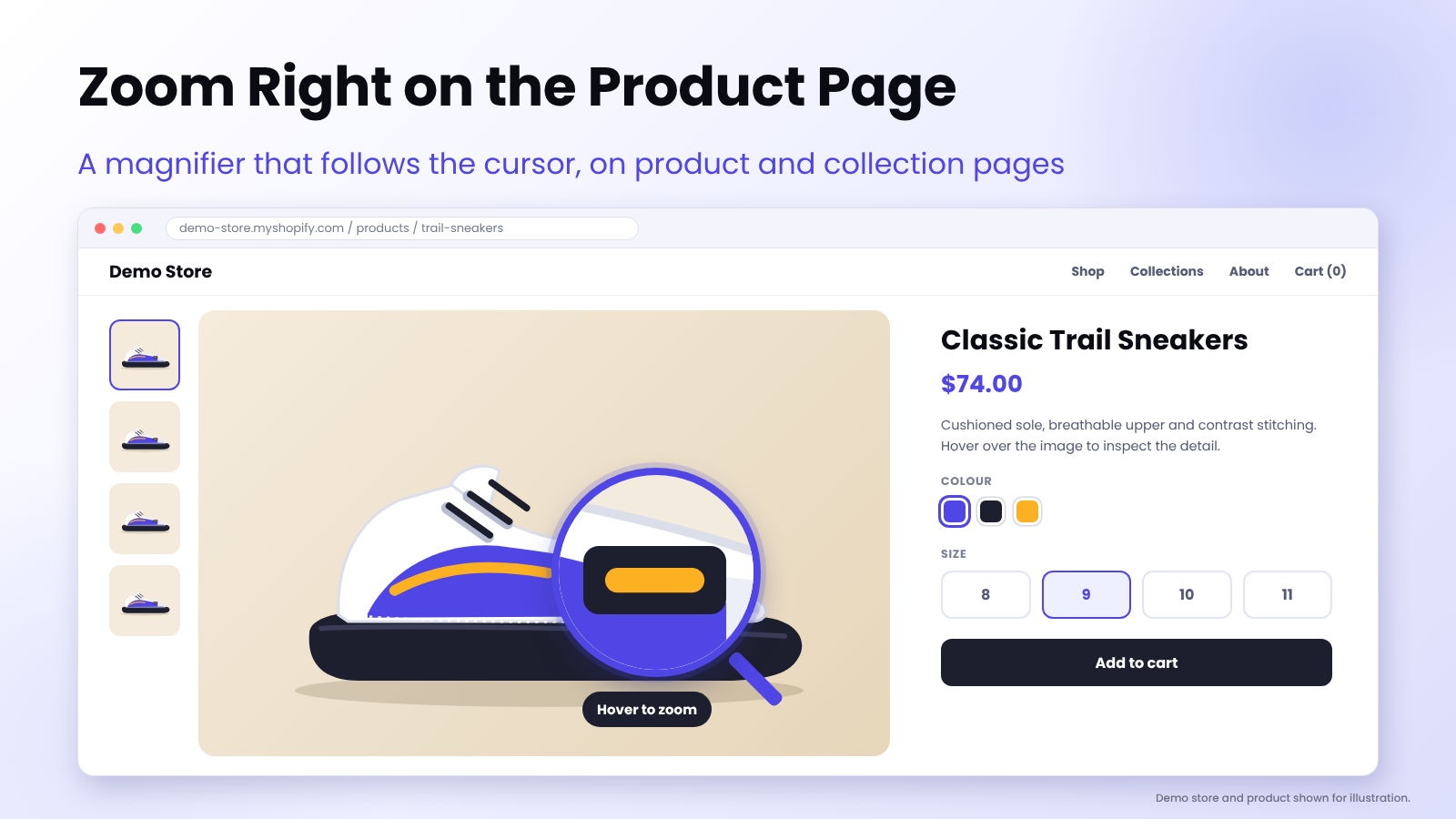
- Try the same on a collection page, since ZoomMaster works on product and collection pages.
- Swap between variants and confirm zoom still works.
Set Up ZoomMaster in About 10 Minutes
- Install ZoomMaster from the Shopify App Store. The listing offers a 30-day free trial.
- Let it detect your images. The plan lists automatic image detection and ZoomMaster works on most Shopify themes automatically, with no coding required.
- Pick your magnifier style: shape, size, border, colour, zoom level and animation.
- Test on desktop and mobile across a few of your best-selling products.
- Need a tweak? If your theme needs a small adjustment, the AppifyCommerce team will configure it for you.
What Merchants Say
ZoomMaster currently shows a 5.0 rating from 7 reviews on the Shopify App Store. Here is what a few of them said, paraphrased from the listing:
- A merchant in the United Kingdom, using the app for about six months, said a problem was resolved quickly and gave it a top score (July 2026).
- A merchant in the United States, using it for about two years, called it a great tool for showing product details (March 2026).
- A merchant in Australia noted that the magnifier initially didn't work on product variations and that the team fixed it quickly after they asked (edited September 2024).
ZoomMaster Pricing
ZoomMaster has one simple plan, according to the current Shopify App Store listing:
| Plan | Price | Trial | Includes |
|---|---|---|---|
| Basic | $2.99/month or $24.99/year (save about 30%) | 30 days free | Zoom up to 10x, mobile and desktop tap-to-zoom, product and collection pages, automatic image detection, circle or square magnifier, grayscale animation effects |
Billing is in USD. Pricing can change, so check the listing for the latest details.
Frequently Asked Questions
Will zoom make my low-resolution photos look sharp? No. A magnifier shows the detail that exists in your image. Upload high-resolution originals for the best results.
Does ZoomMaster work on mobile? Yes. It includes tap-to-zoom and touch support, so shoppers on phones can zoom in as well.
Do I need to edit my theme code? No. ZoomMaster is no-code and works automatically on most Shopify themes. If your theme needs a tweak, the team will configure it for you.
Can I change how the magnifier looks? Yes. You can customize the style, size, border and colour and adjust the zoom level and animation to match your brand.
Does it work on collection pages too? Yes. The listing says ZoomMaster works on product and collection pages.
Is there a free trial? Yes. The Basic plan includes a 30-day free trial.
What languages does the app support? The listing shows English.
Final Thoughts
Good zoom starts before the app: sharp originals, a detail shot or two, consistent framing, clean compression. Add a magnifier that suits your brand and works on phones and shoppers can see exactly what they're buying.
✨ Give your product pages the detail they deserve. Try ZoomMaster today.
💡 Need help? Our support team is here for you 24/7 - support@appifycommerce.com