10 Customer Tagging Rules Every Shopify Store Needs in 2026 (Copy These Automations)

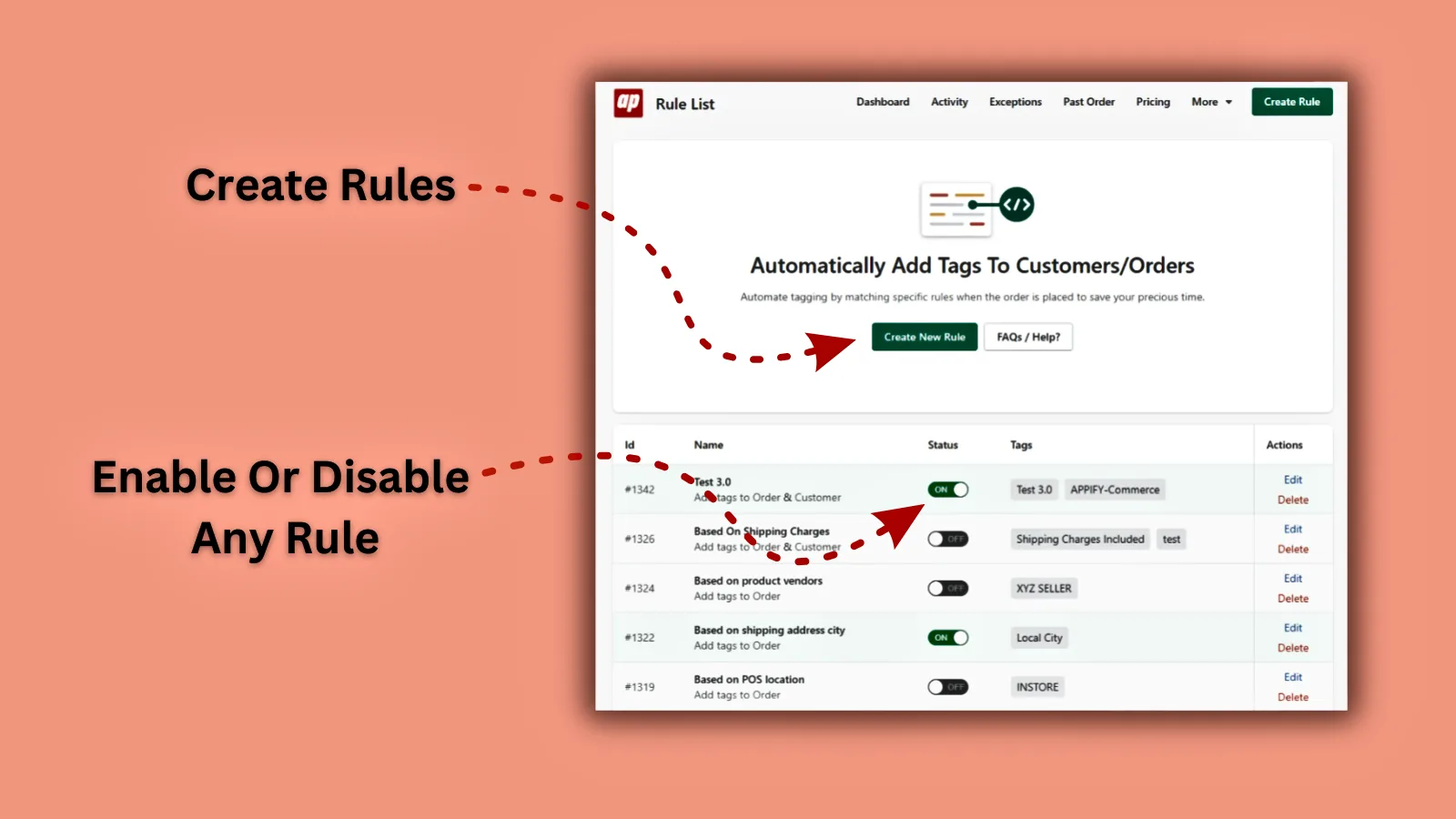
👉 Stop tagging customers by hand: Install Taggify on the Shopify App Store →
Personalized marketing drives up to 25% of total brand revenue (McKinsey). Yet most Shopify merchants still treat all customers the same — sending identical emails to first-time buyers, VIPs, and at-risk churners alike.
The fix? Customer and order tags. Tags are the foundation of Shopify segmentation. Get them right, and your email campaigns, discount strategies and fulfillment workflows become dramatically more effective.
Here are 10 tagging rules you can set up today — no coding required.
Why Customer Tags Are the Foundation of Personalization
Before diving into rules, consider these stats:
- 71% of consumers expect personalized experiences from brands (Shopify Commerce Trends)
- 62% of consumers will leave a brand that doesn't personalize (Twilio Segment)
- Personalized marketing delivers 8x ROI compared to generic campaigns (McKinsey)
But personalization starts with knowing who your customers are. And that starts with tags.
Shopify's native customer segmentation uses ShopifyQL to filter customers. Tags extend this by letting you:
- Trigger automated email flows in Klaviyo, Mailchimp or Shopify Email
- Apply automatic discounts to tagged customer groups
- Route orders to specific fulfillment workflows
- Identify VIPs, wholesale buyers, and high-risk orders instantly
The 10 Rules (Copy These)
Rule 1: Tag VIP Customers by Lifetime Spend
Condition: Total order amount > $500
Tag: VIP
Trigger: Order create
Why: VIP customers make up 20% of your base but drive 80% of revenue. Tagging them lets you send exclusive offers, early access to new products, and loyalty rewards that keep them spending.
Email use case: Trigger a "You're a VIP" welcome email + exclusive discount code when the tag is applied.
Rule 2: Flag First-Time Buyers
Condition: Number of customer orders = 1
Tag: first-time-buyer
Trigger: Order create
Why: First-time buyers have a 27% chance of returning for a second purchase. That jumps to 54% after the third purchase. Tagging first-timers lets you create targeted win-back sequences.
Email use case: Send a 10% discount on their next order, 7 days after first purchase.
Rule 3: Tag by Geographic Region
Condition: Shipping country = United States AND Shipping state = California
Tag: CA-customer
Trigger: Order create
Why: Geo-tagging enables location-specific promotions (holiday campaigns, local events, shipping speed messaging), weather-based marketing, and compliance workflows (e.g., different tax/privacy rules by state).
Variation: Create rules for your top 5 shipping destinations to segment by region.
Rule 4: Identify Discount-Dependent Buyers
Condition: Discount code is not empty
Tag: discount-buyer
Trigger: Order create
Why: Some customers only buy when there's a discount. Knowing who they are helps you decide: nurture them toward full-price buying, or lean in with deal-focused campaigns?
Advanced: Combine with order count > 3 to find customers who have NEVER purchased without a discount.
Rule 5: Tag by Product Collection Purchased
Condition: Product from collection "Summer 2026"
Tag: summer-2026-buyer
Trigger: Order create
Why: Seasonal and collection-based tagging lets you target customers for new drops in the same category. Someone who bought from your Summer collection is much more likely to buy from your Fall release.
Email use case: "New Fall arrivals from the team that brought you Summer 2026 — you'll love these."
Rule 6: Flag Wholesale / High-Volume Orders
Condition: Total order amount > $1,000 AND number of items > 10
Tag: wholesale-potential
Trigger: Order create
Why: Potential wholesale customers often reveal themselves through unusually large orders. Auto-tagging them triggers a personal outreach workflow — convert them into B2B accounts for recurring revenue.
Rule 7: Tag Email Marketing Subscribers
Condition: Email marketing consent = subscribed
Tag: email-subscribed
Trigger: Customer account create
Why: Knowing which customers have opted in lets you create segments that respect consent boundaries. Combine with purchase history tags for GDPR-compliant personalized campaigns.
Rule 8: Tag by Payment Gateway
Condition: Payment gateway = "shopify_payments" OR "paypal"
Tag: payment-shopify or payment-paypal
Trigger: Order create
Why: Payment method correlates with customer demographics and buying behavior. PayPal customers may prefer buyer protection, while Shop Pay customers value speed. Use this for A/B testing checkout messaging.
Rule 9: Tag Fulfilled vs Unfulfilled for Operations
Condition: Fulfillment status = fulfilled
Tag: order-shipped
Trigger: Order fulfilled
Why: Automatically tagging fulfilled orders helps fulfillment teams track status and lets you trigger post-purchase email sequences (review requests, cross-sell campaigns) at exactly the right moment.
Rule 10: Tag by Referral Source
Condition: Reference URL contains "instagram" or "tiktok"
Tag: source-social
Trigger: Order create
Why: Understanding which channel drove the purchase lets you attribute revenue to marketing efforts and create channel-specific follow-up campaigns. A customer acquired via TikTok likely responds to different content than one from Google.
How to Set These Up (3 Options)
Option 1: Shopify Flow (Free, Basic)
Shopify Flow can tag customers and orders using workflow triggers. However:
- ❌ No visual condition builder — you write logic manually
- ❌ Can't bulk-tag past orders/customers retroactively
- ❌ No AND/OR multi-condition chains in a single rule
- ❌ No exception management
- ❌ No activity tracking or process logs
Option 2: Manual Tagging (Free, Painful)
You can manually add tags in the Shopify admin. But with 100+ orders/day, this becomes impossible to maintain and error-prone.
Option 3: Taggify – Customer & Orders (Recommended)
Taggify gives you all 10 rules above in a visual builder with:
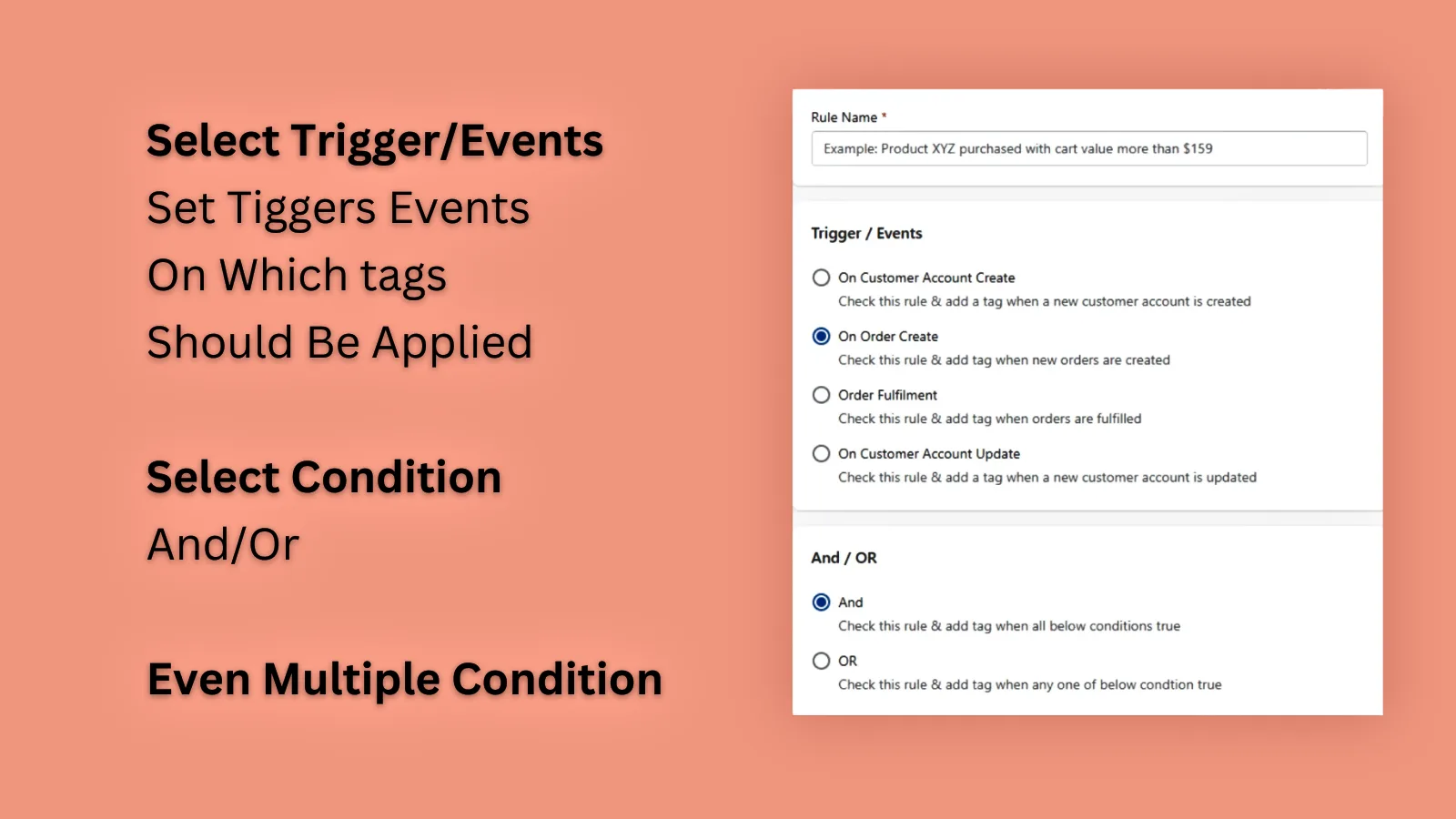
- ✅ 20+ condition types — product, collection, amount, location, discount code, payment gateway, fulfillment status, email consent, referral URL and more
- ✅ AND/OR logic — chain multiple conditions in a single rule
- ✅ Bulk past-order tagging — apply rules retroactively to historical orders by date range
- ✅ Customer exceptions — skip specific customers from being tagged
- ✅ Dynamic tags — auto-generate sequence numbers or date-based tags
- ✅ Activity tracking — see exactly what was tagged, when, and why
- ✅ Real-time execution — tags applied instantly via Shopify webhooks
Pricing: What Does It Cost?
| Plan | Monthly | Processes Included | Overage |
|---|---|---|---|
| Free | $0 | 100 | $0.05 each |
| Basic | $5.99 | 200 | $0.04 each |
| Professional | $9.99 | 1,000 | $0.03 each |
| Enterprise | $19.99 | Unlimited | None |
A "process" = one tag applied to one customer or order. Most stores under 500 orders/month fit comfortably on the Free or Basic plan.
FAQ
How is Taggify different from Shopify Flow?
Shopify Flow is a general automation tool that can add tags. Taggify is a dedicated tagging engine with 20+ conditions, AND/OR logic, bulk past-order backfill, exception management, and dynamic tag generation — all in a no-code visual builder. Full comparison here.
Can I tag existing customers, not just new ones?
Yes. Taggify's bulk past-order feature lets you select a date range and apply any rule retroactively to historical orders and customers.
Will tags sync with Klaviyo or Mailchimp?
Yes. Shopify customer tags automatically sync with Klaviyo, Mailchimp, and other email tools that pull customer data from your store. When Taggify adds a tag, it appears in your email platform's segments within minutes.
Does Taggify slow down my store?
No. Taggify operates entirely in the Shopify admin — it doesn't add any code to your storefront. Tags are applied via background webhooks.
The Bottom Line
Customer tags aren't just organizational labels — they're revenue drivers. Every tag you apply is a future personalized campaign, a smarter discount rule, or a faster fulfillment workflow.
The 10 rules above cover the core segments every store needs. Set them up once, and they run automatically on every new order — forever.
Ready to automate your customer tagging?
Install Taggify Free →