From Checkout to Doorstep: A Setup Guide to WhatsApp Order Updates on Shopify With Bizify

👉 Add WhatsApp chat and order updates to your store: Install Bizify ‑ WhatsApp chat on the Shopify App Store →
Many visitors leave without buying when they can't reach you quickly. After they do buy, the same people start asking where their order is. Both problems have the same fix: a fast, familiar channel that works before the sale and after it.
We've already written about why WhatsApp matters for Shopify stores and how Bizify compares with Meta's own app. This post is the practical one. It walks through what you set up, in what order, and what your customers actually see on their phones.
What You're Setting Up
Bizify ‑ WhatsApp chat does two jobs, and it helps to keep them separate in your head.
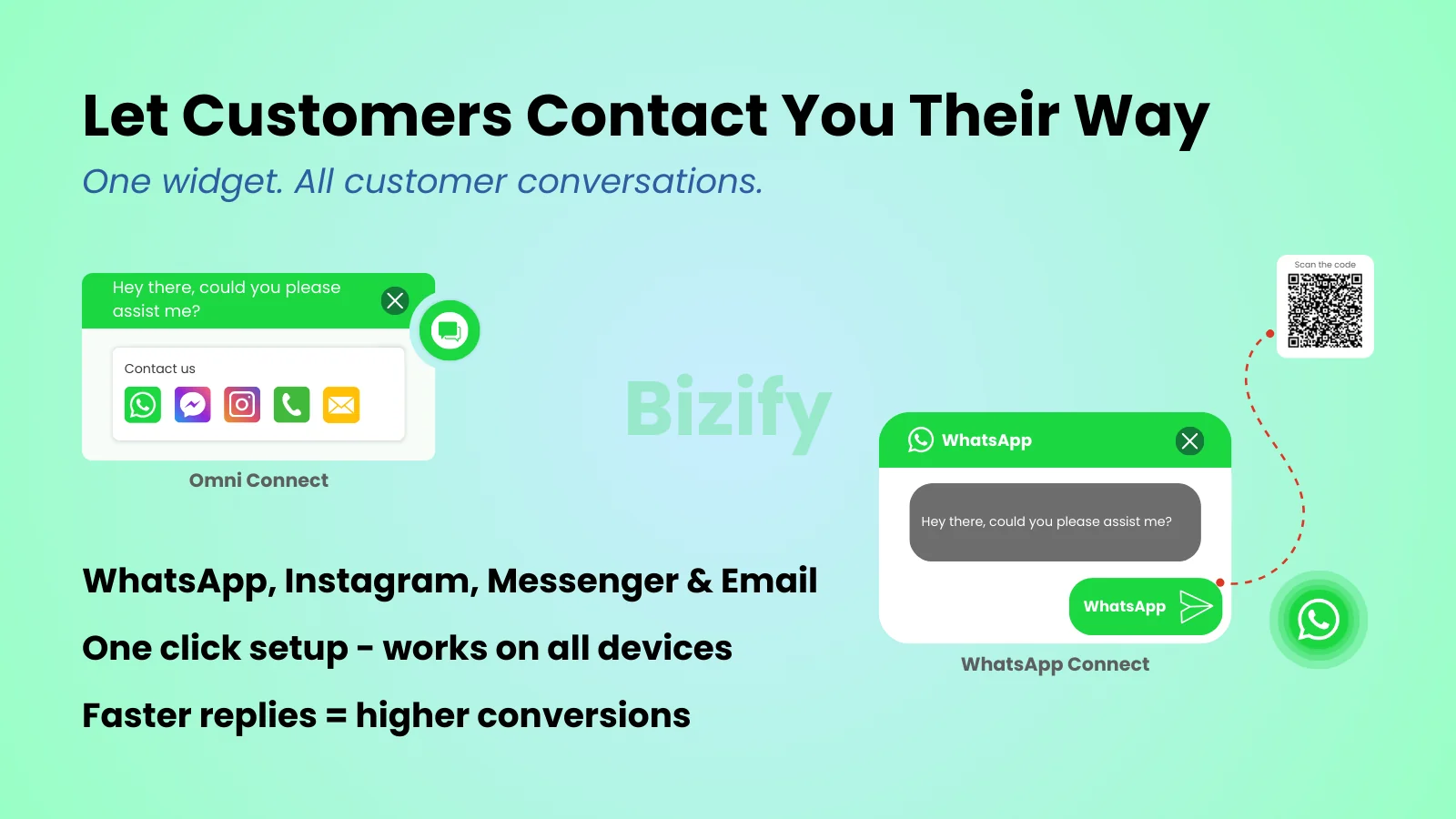
Job one is the storefront widget. A chat button sits on your pages so a shopper with a question can message you straight away. It's a multi-channel widget, so it can offer WhatsApp alongside Facebook, Instagram, phone and email and customers pick the channel they already use.
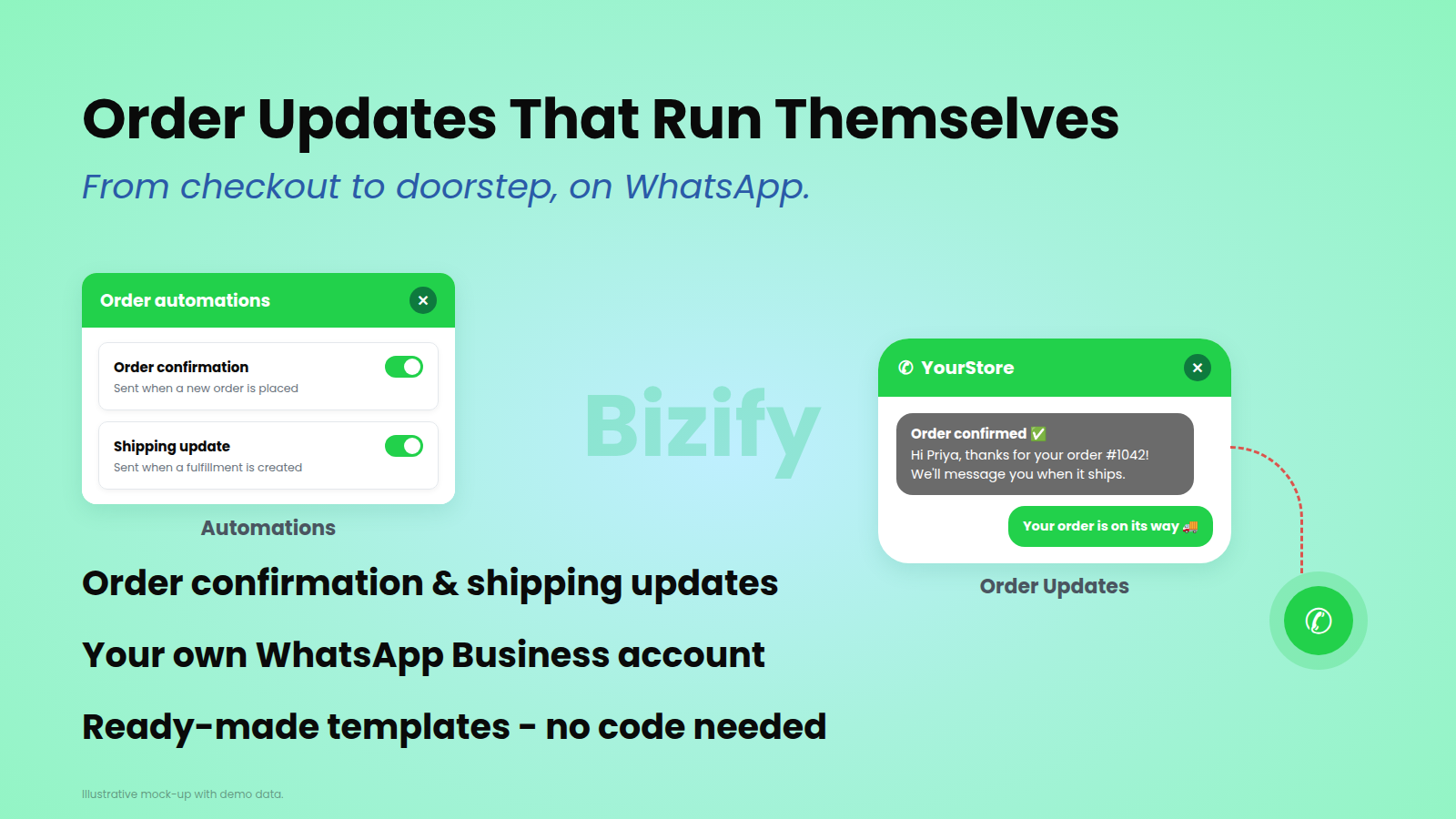
Job two is automated order messaging. When an order is placed or shipped, a WhatsApp message goes to the customer from your own WhatsApp Business account. That's what cuts down on "where is my order" questions and makes the store feel attentive after checkout.
The three things the app is built around are a multi-channel chat widget with WhatsApp support, automated order confirmation and shipping update messages and a fully customizable widget with no-code setup.
Step 1: Switch On the Widget (Free Plan)
The free plan is enough to get the storefront half running. It includes multiple chat channels, widget customization, the WhatsApp button and business hours with timezone handling.
Add the widget to your theme through the theme editor, choose which channels to show, and match the colors and position to your brand. There's no code involved. Set your business hours at this point too. A chat button that invites a message at 3 a.m. and then goes quiet does more harm than having no button, so it's worth telling the widget when you're actually around.
Step 2: Connect Your WhatsApp Business Account (Advance Plan)
Order confirmations and shipping updates are sent through your own WhatsApp Business account, not a shared number. You connect it through Meta's official flow, which is also why customers see messages from your store's name rather than an unknown sender.
This step is where the Advance plan comes in. It includes automated order confirmation and shipping update messages, marketing campaigns, abandoned cart messages and pre-designed WhatsApp utility templates.
Step 3: Pick and Approve Your Templates
WhatsApp doesn't let businesses send automated messages in free-form text. Messages outside an active conversation use templates and templates go through Meta's approval before they can be sent. Bizify includes pre-designed utility templates, so you can start from a ready-made order confirmation or shipping update rather than writing one from scratch.
A good order confirmation does three things in a couple of lines: it names the customer, it names the order and it says what happens next. A good shipping update gives the customer something to act on, which is usually a tracking link. Keep the tone the same as the rest of your store and resist the urge to turn a utility message into an advert. Promotional messages are a different category and mixing the two tends to cause trouble at approval time.
Step 4: Know What Your Customers Will See
It's worth placing an order yourself and reading the result on your phone. A typical sequence looks like this:
- Order confirmed, sent within moments of checkout, so the customer knows it went through.
- Shipping update, sent when you create the fulfillment, with a tracking link.
- Delivery messages, if you've set them up, so the customer is expecting the parcel.
Each message lands in a thread under your store's name. Customers can reply in the same conversation, which means a question about their order reaches you in the place you already answer messages.
Step 5: Watch the Message Log
Once messages are going out, check the log now and then. You want to see delivered messages and spot any that failed, so you can fix the cause, which is often a phone number in the wrong format. A few failures in a week is normal. A pattern is worth investigating.
Free or Advance?
| Free | Advance | |
|---|---|---|
| Price | $0 | $9.99/month or $99.99/year |
| Multi-channel chat widget | ✅ | ✅ |
| WhatsApp button | ✅ | ✅ |
| Widget customization | ✅ | ✅ |
| Business hours and timezone | ✅ | ✅ |
| Order confirmation messages | ✅ | |
| Shipping update messages | ✅ | |
| Abandoned cart messages | ✅ | |
| Marketing campaigns | ✅ | |
| Pre-designed WhatsApp utility templates | ✅ |
Pricing was read off the Shopify App Store listing on 12 October 2026. The listing says billing is in USD, with recurring and usage-based charges billed every 30 days and it doesn't mention a per-message fee from the app. WhatsApp itself prices messages under Meta's own rate card, so check Meta's current pricing for your region before you plan volumes.
If you only want customers to be able to reach you, start free. If you want the post-purchase messaging, that's the Advance plan.
What Merchants Are Saying
Bizify holds a 5.0 rating on the Shopify App Store, but that's from a single review so far. It comes from a store in Italy that had used the app for four months and wrote, in capitals, "I SUGGEST EVERYONE THIS APP." One review isn't a track record, so judge the app by trying the free plan on your own store.
FAQ
Do I need a WhatsApp Business account? For the storefront chat widget on the free plan, no. For automated order confirmations and shipping updates, yes. Those are sent from your own WhatsApp Business account, connected through Meta's official flow.
Do I have to write my own templates? No. The Advance plan includes pre-designed WhatsApp utility templates, so you can start from those and adjust them.
Will the widget slow my store? It loads as a lightweight block through the theme editor, so it shouldn't add meaningful weight to your pages.
Can customers reach me on channels other than WhatsApp? Yes. The widget is multi-channel, and the listing says it works with Facebook, Instagram, phone, email and WhatsApp.
Does the app work in languages other than English? The listing shows English for the app itself. Your customer-facing messages are your own templates, so check the language options available when you create them.
The Bottom Line
Set up in this order, WhatsApp does the same work before and after the sale. The widget catches the question that would have become an abandoned cart and the order messages answer the question that would have become a support ticket. Start with the free plan to get the chat button live, and add Advance when you want your order updates to run themselves.
Ready to try it?
Install Bizify ‑ WhatsApp chat →