Shopify Catalog Checklist: Prep Your Products and Build PDF Catalogs Buyers Actually Use (with Catlogify)

Demo store data shown for illustration.
👉 Turn your Shopify collections into PDF catalogs: Try Catlogify on the Shopify App Store →
Your PDF Catalog Is Only as Good as Your Product Data
Most merchants who need a catalog start in the wrong place. They open a design tool, pick a template and begin copying product names into text boxes.
The better starting point is your Shopify admin. Your product titles, descriptions, images and collections are already the raw material for every catalog you will ever send. If that material is messy, the PDF will be messy too, however good the layout looks.
This guide is a practical checklist for getting your store ready, then turning it into focused PDF catalogs and wholesale line sheets with Catlogify by AppifyCommerce. If you want the full feature overview first, read our Catlogify introduction. This post is about the preparation and decisions that make a catalog work.
Step 1: Audit the Product Data a Catalog Will Pull In
A catalog shows buyers what your product pages show. Before you generate anything, spend twenty minutes on the products you plan to include and check:
- Titles are clear and consistent. "Leather Shoulder Bag" works better in print than "BAG-0042 NEW!!"
- Descriptions are short enough to scan. A catalog tile is not a product page, so the first two sentences matter most.
- Main images are clean, similarly framed and high resolution. Mixed backgrounds make a catalog look unfinished.
- No placeholder or draft text is hiding in a description. It will print.
- Archived or out-of-season products are not sitting in the collection you are about to use.
Fixing these in Shopify is a one-time job that also improves your storefront, which is a nice side effect.
Step 2: Turn Collections Into Catalogs
Catlogify builds catalogs from your collections and product data, so your collection structure becomes your catalog structure. Think about the catalogs you will actually need, then create collections to match:
- A Wholesale Range collection for retailer and distributor conversations
- A Summer Collection or seasonal collection for campaign catalogs
- A New Arrivals collection for a quick "what's new" document
- A Best Sellers collection for first-time buyers who want a short list
Once those collections exist, a new catalog is a matter of choosing one and deciding what to show. That is the part you do inside the app.
Step 3: Decide What Each Audience Needs to See
This is where most catalogs go wrong. One document rarely suits every reader, and Catlogify lets you choose which product details appear, so you can match each catalog to its audience.
Here is a simple way to think about it:
| Audience | What they want | Suggested details |
|---|---|---|
| Wholesale buyer | Compare many products quickly | Image, title, description, price, QR code |
| Retail customer or lookbook reader | Browse and be inspired | Large image, title, short description, QR code |
| Trade show visitor | Find something fast, follow up later | Image, title, QR code |
| Sales representative | A portable reference | Image, title, description, QR code |
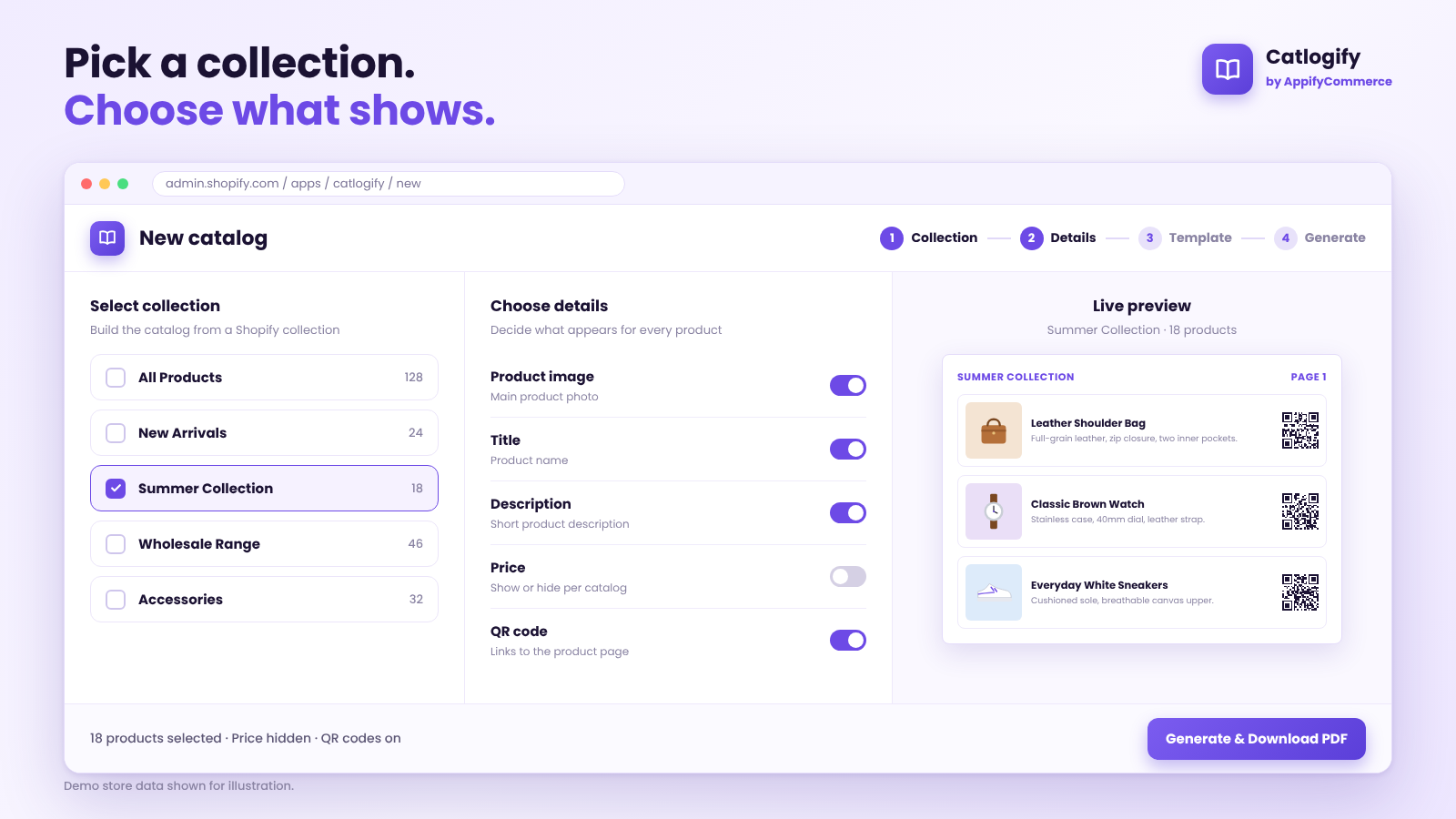
In the first screenshot at the top of this post you can see the idea in practice: the merchant picks a collection, switches the details they want on or off, and checks a live preview before generating. Whether to show price is a business decision. For a public lookbook you may leave it off, for a buyer line sheet you will probably want it on.
Catalog or line sheet? A catalog leans visual: bigger images, fewer products per page. A line sheet leans informational: more products per page, tighter descriptions, details buyers need to place an order. Catlogify supports both kinds of output from the same Shopify data, so you can keep one source of truth and choose the emphasis for each audience.
Step 4: Preview Before You Share
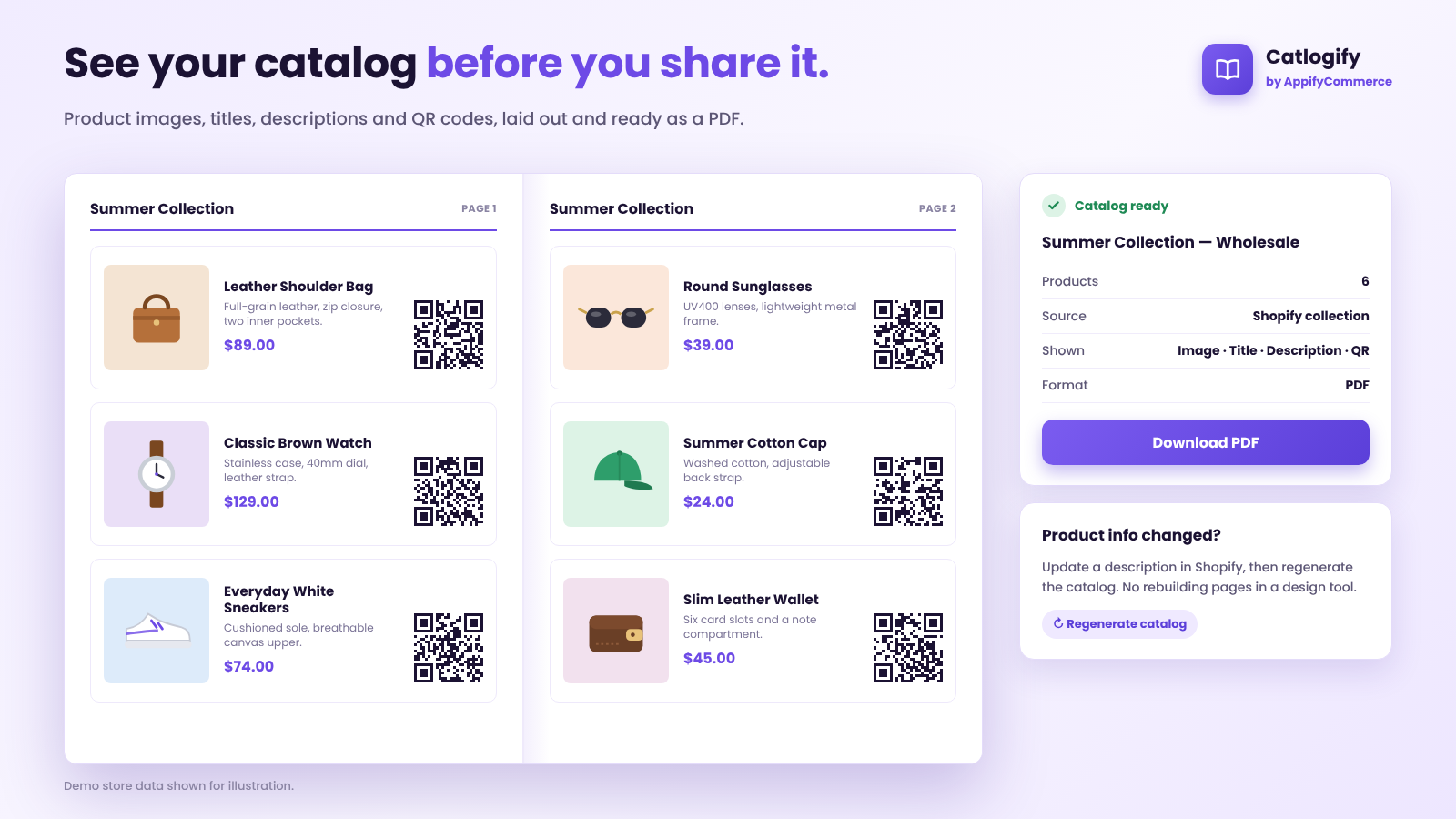
Generate the catalog and read it the way a buyer would. Scroll through the PDF and look for:
- Images that crop awkwardly or look inconsistent
- Descriptions that run long or end mid-sentence
- Products that should not be there
- QR codes that sit too close to the edge of a page
Demo store data shown for illustration.
If something looks off, the fix almost always belongs in Shopify, not in the PDF. Correct the product, then regenerate. That habit keeps your store and your catalog telling the same story.
Step 5: Make QR Codes Work in the Real World
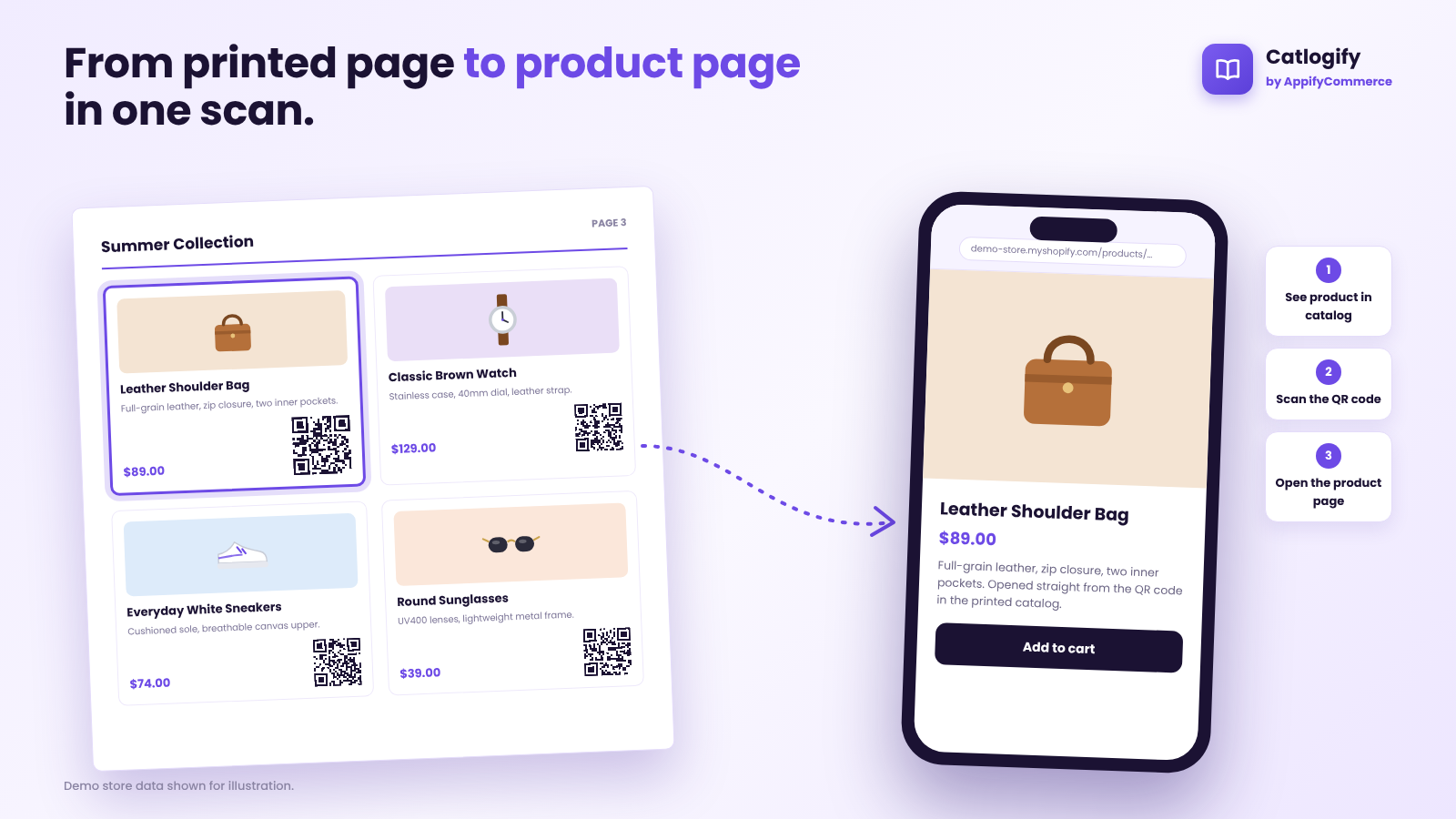
QR codes are what connect a printed or PDF catalog back to your Shopify store. A buyer sees a product, scans the code and lands on the product page. Catlogify adds these codes for you, but a few practical habits make them far more useful:
- Test before you print. Scan several codes from the actual PDF with a phone, not just from your screen.
- Print at a sensible size. A QR code that is tiny on paper is frustrating to scan. Check a printed proof first.
- Make sure the product page is ready. The scan is only as good as what it opens. Confirm that the product is published and that its page loads well on mobile.
- Tell people to scan. A short line such as "Scan any code to view the product online" on your cover or first page removes any hesitation.
Demo store data shown for illustration.
Step 6: Keep Catalogs Current Without Starting Over
The biggest hidden cost of a manual catalog is maintenance. A price changes, a description is rewritten, a product is added, and now your PDF is out of date.
With Catlogify you can update your catalogs when product information changes. Fix the product in Shopify, regenerate the catalog, and send the new file. Two habits help:
- Put a date in the file name, for example "Summer-Collection-Wholesale-2026-10". Buyers and your sales team will always know which version is current.
- Review before each major send. A quick regeneration before a trade show or a buyer meeting takes minutes.
Four Catalogs Worth Building First
If you are not sure where to begin, these four cover most situations:
1. The wholesale line sheet. Built from your Wholesale Range collection, with image, title, description, price and QR code. Send it to retailers and distributors when they ask "what do you carry?"
2. The seasonal lookbook. Built from a seasonal collection with larger visuals and short descriptions. Useful for campaigns, partners and print.
3. The trade show handout. A short catalog from your best sellers or new arrivals, with QR codes so visitors can scan the products they liked and look them up after the event.
4. The sales rep pack. A broader catalog your team can carry or open on a tablet, so everyone presents the same up-to-date product information.
Catlogify Pricing
We checked the Shopify App Store listing for the current plans:
| Plan | Price | What you get |
|---|---|---|
| Free | $0 | 1 catalog, up to 25 products |
| Pro | $3.99/month or $45/year | 5 catalogs, up to 250 products, QR codes, digital catalog, 7-day free trial |
| Business | $19.90/month or $200/year | Unlimited catalogs and products, QR codes, digital catalog, 7-day free trial |
The Free plan is a good way to test the workflow on one collection before choosing a plan. Pricing can change, so always check the app listing for the latest details.
Frequently Asked Questions
Do I need design skills to use Catlogify? No. You choose a collection, decide which product details to show and generate the catalog. The product data comes from your Shopify store.
Can I create a different catalog for different buyers? Yes. Catalogs are built from collections, so you can create focused catalogs for wholesale, seasonal campaigns, new arrivals or any other group of products.
Can I control which product details appear? Yes. You can choose which details are included, such as product images, titles and descriptions, and you can add QR codes to link to the product pages.
What happens when I change a product in Shopify? You can update your catalog when product information changes, so you do not have to rebuild the document from scratch.
Is there a free plan? Yes. The Free plan includes 1 catalog with up to 25 products. Paid plans add more catalogs and products, QR codes and a digital catalog, with a 7-day free trial.
The Short Version
- Clean up titles, descriptions and images in Shopify.
- Organise collections around the catalogs you actually need.
- Choose the details each audience should see.
- Preview, fix at the source, and regenerate.
- Test your QR codes before anything goes to print.
- Update the catalog whenever your products change.
Your product information already lives in Shopify. With a little preparation, Catlogify turns it into catalogs and line sheets you can send with confidence.
👉 Create your first catalog today: Install Catlogify on the Shopify App Store →