How can I customize the Accessibility Widget on my website?
You can customize the accessibility widget to match your website's branding and layout from the AppifyCommerce dashboard.
note
Style customization is available on the Basic and Advanced plans. The Free plan uses the default look with AppifyCommerce branding.
Customization Options
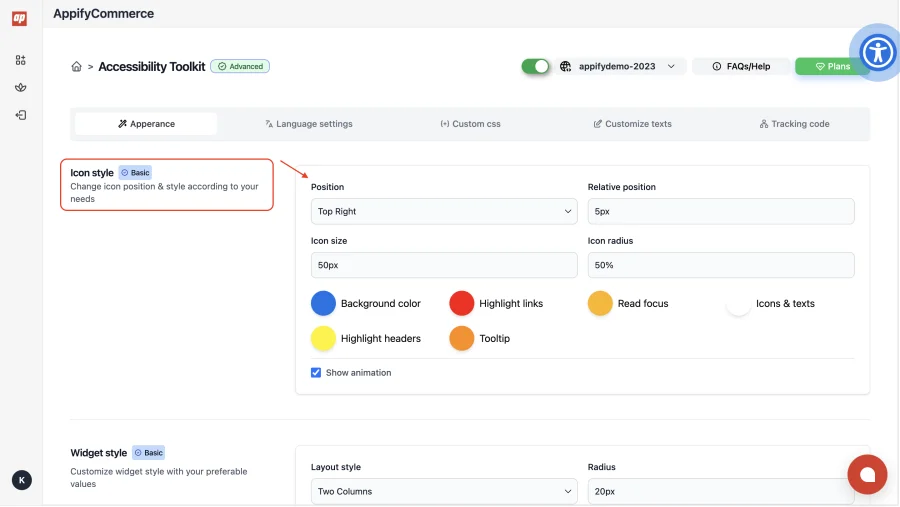
Widget Position
Choose where the accessibility icon appears on your website:
- Bottom Right (default)
- Bottom Left
- Top Right
- Top Left
- Top Center
- Bottom Center
- Left Center
- Right Center
You can also nudge the icon with the Relative position offset.
Widget Appearance
- Background color — Set the widget button colour to match your brand.
- Icon size — Adjust the size of the floating accessibility button.
- Icon radius — Control the roundness of the widget button.
Widget Style
Choose a Layout style (One, Two or Three Columns) and adjust:
- Radius, horizontal and vertical spacings, and container radius
- The colours for Highlight links, Read focus, Icons & texts, Highlight headers and Tooltip
Steps to Customize
- Log in to your AppifyCommerce dashboard.
- Go to Accessibility Toolkit → Apperance.
- Adjust the position, colors and appearance as needed.
- Click Save to apply the changes.
Changes will be reflected on your website immediately.